Know where the hours went.
Start a timer on the action item you're working on, log the rest by hand, and see every hour by client, project, and person. Billable and non-billable, kept apart from the start.
How it works
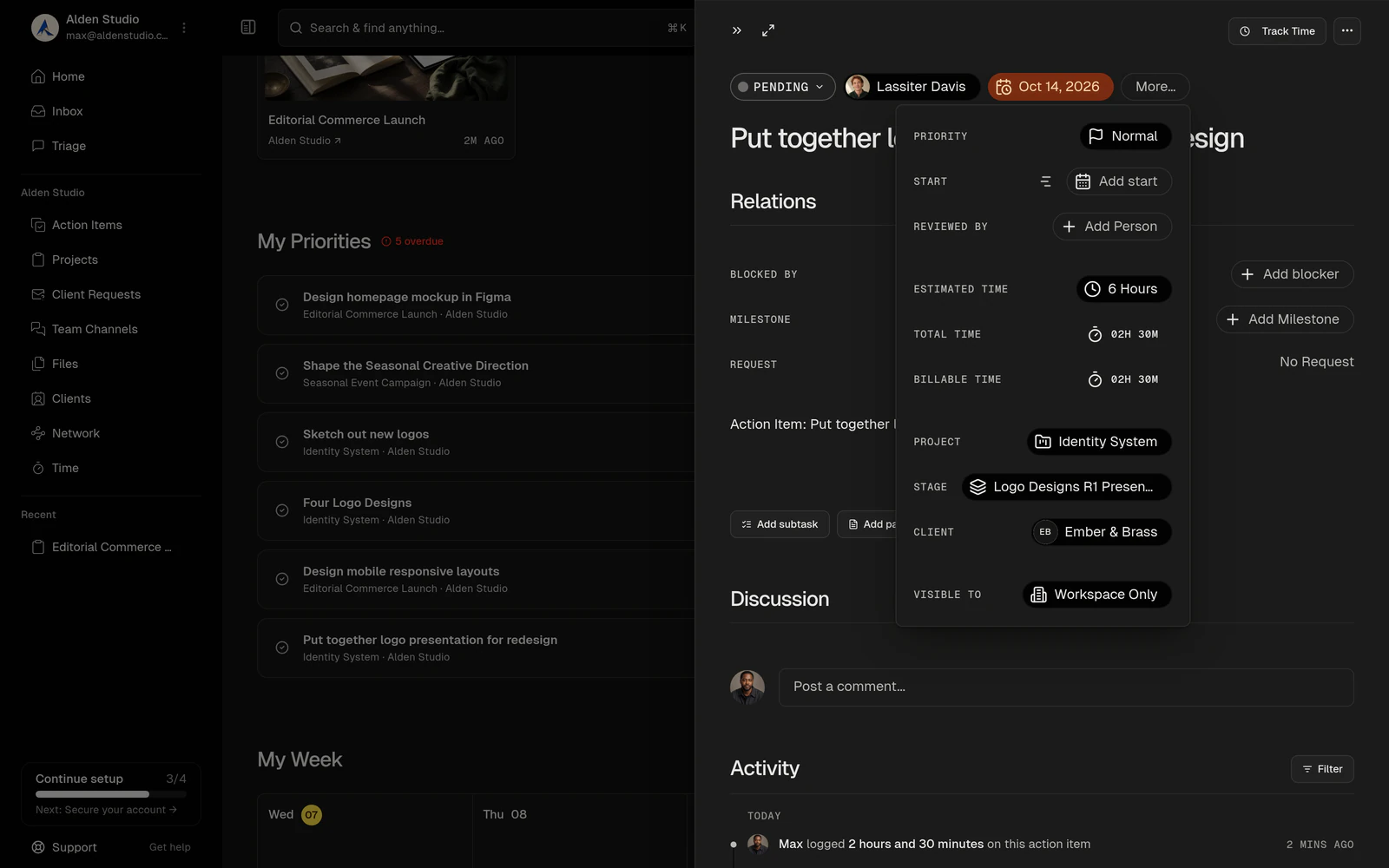
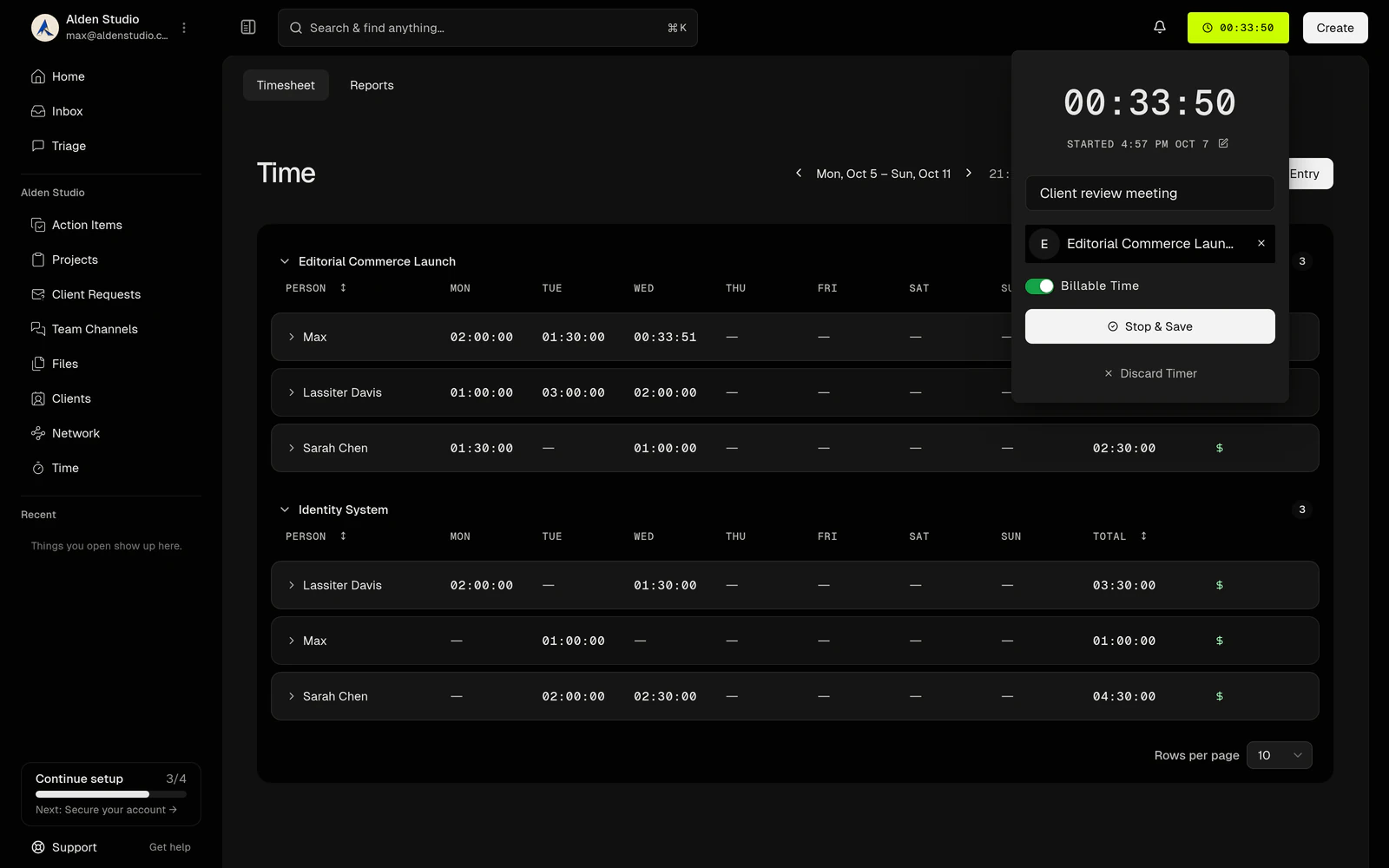
Track. Start the clock without leaving the work.
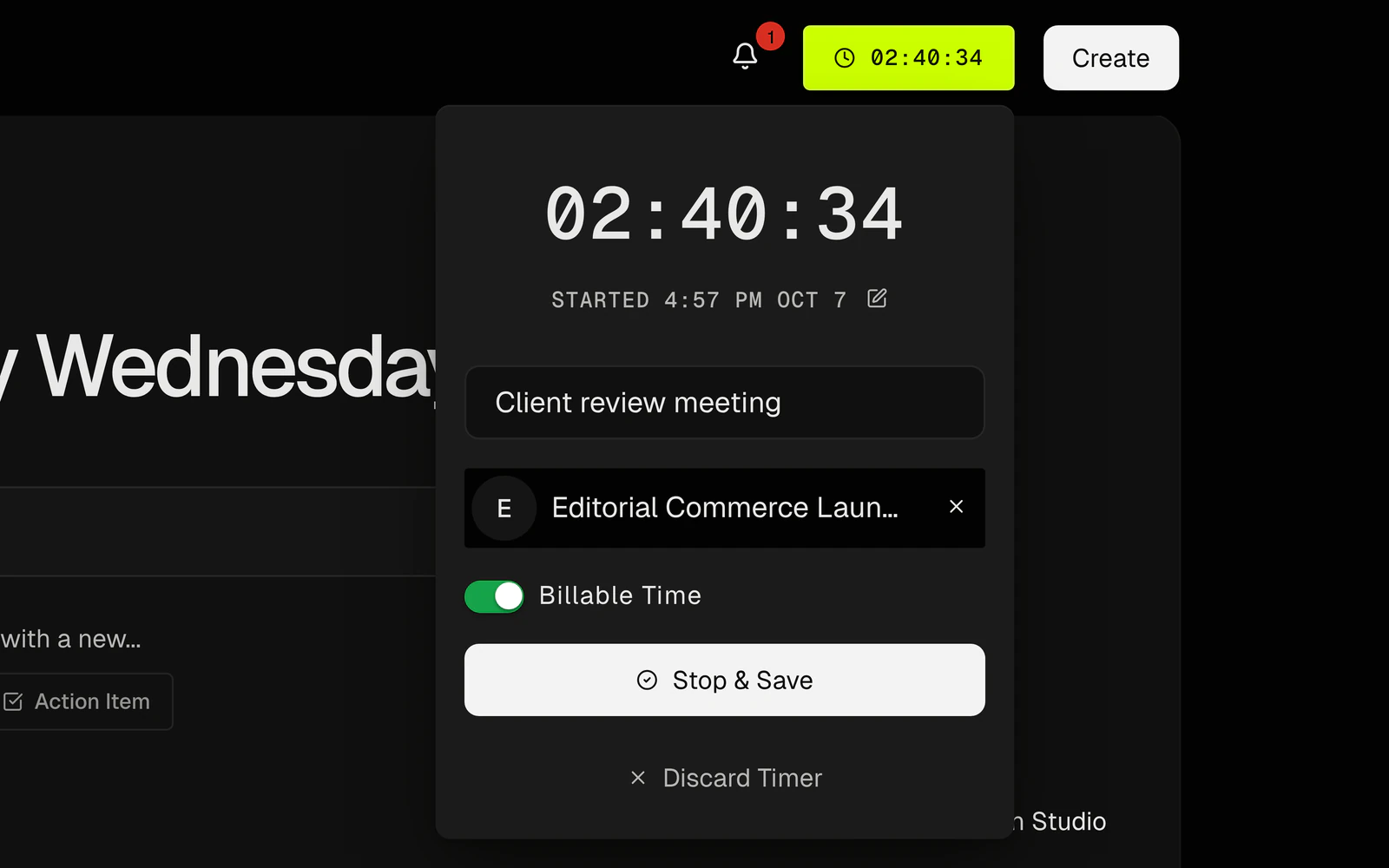
Hit Track Time on an action item, or start the timer in the top bar and say what you're on. It keeps running while you move around Watson, and between workspaces, until you stop it.
- One timer at a time. Starting another asks first.
- Change the start time or the work while it runs.
- Started it by mistake? Discard it.
Log. Fill in what the timer missed.
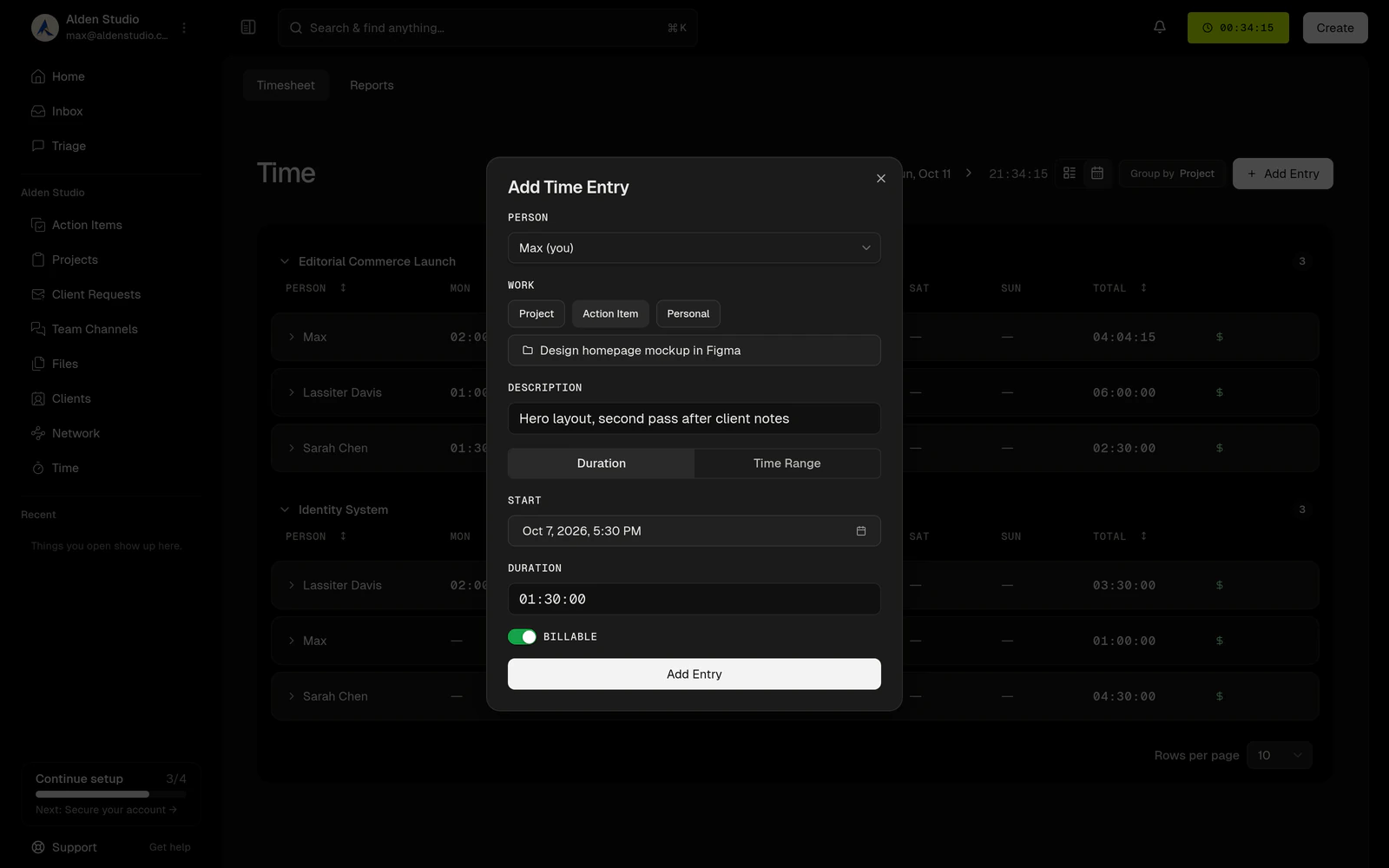
Forgot to start the timer? Add the time afterward. Type the duration the way you'd say it, or pick a start and an end, then mark whether the client pays for it.
- Log it to an action item, a project, or personal work.
- Admins can fill in a teammate's hours when they forget.
- Double-booked time gets caught before it saves.
Report. See the week, the quarter, the year.
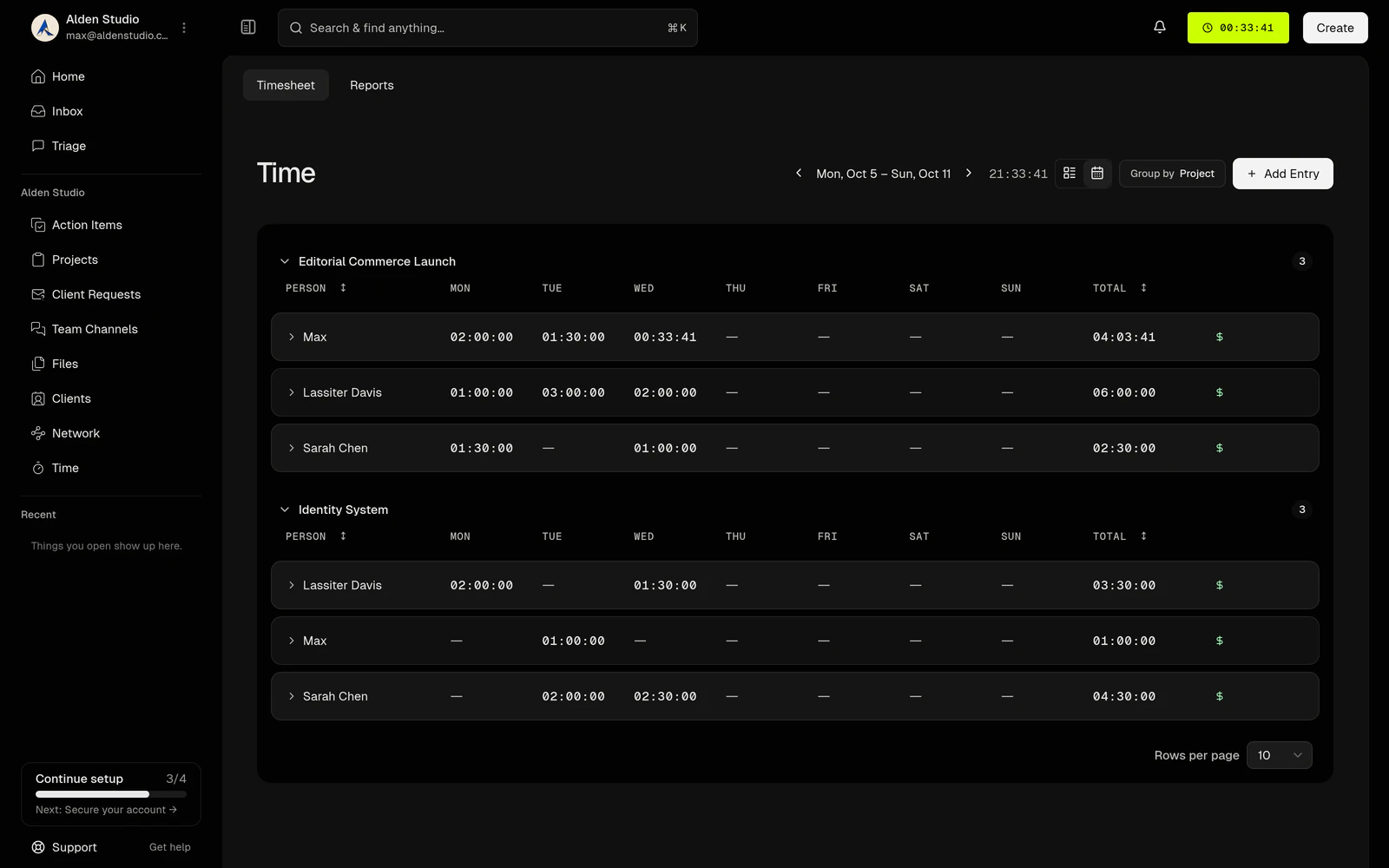
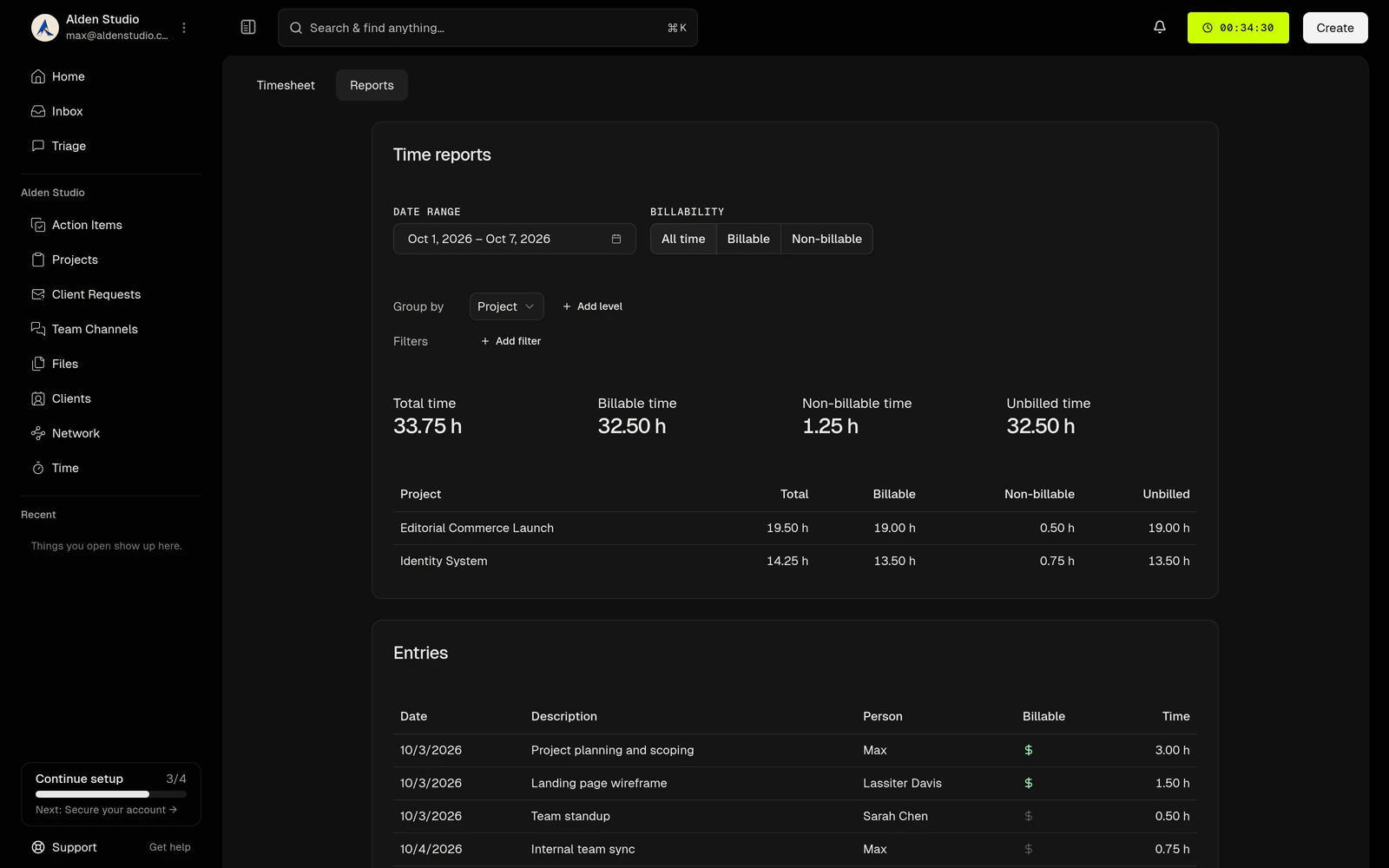
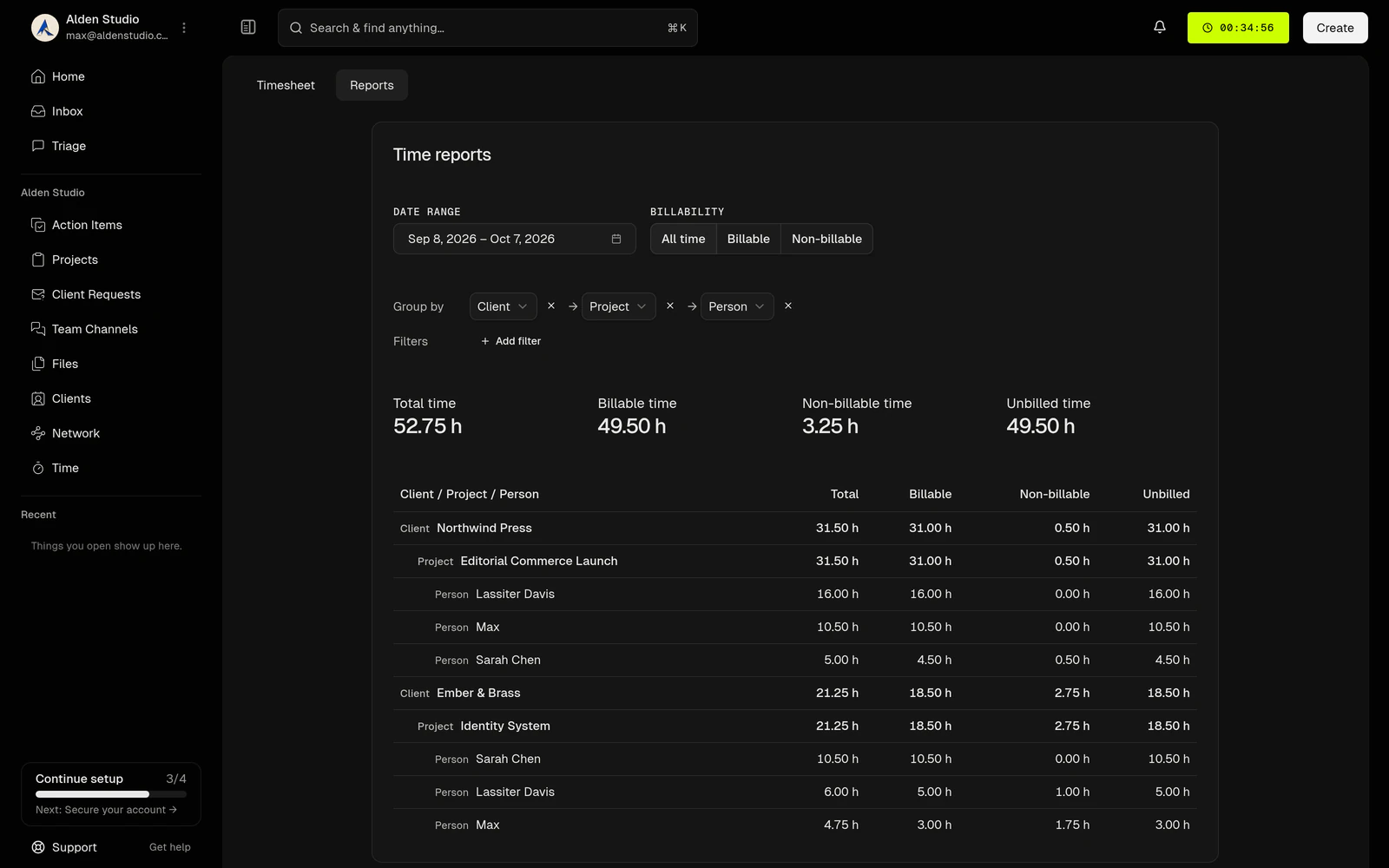
The timesheet shows a day or a week, grouped by project, action item, or person. Reports cover any range up to a year, grouped three levels deep by client, engagement, project, stage, or person, with billable and unbilled totals on top.
- Filter any client, project, or person in or out.
- Workspace Members see their own time and the Owner of the workspace can see it all.
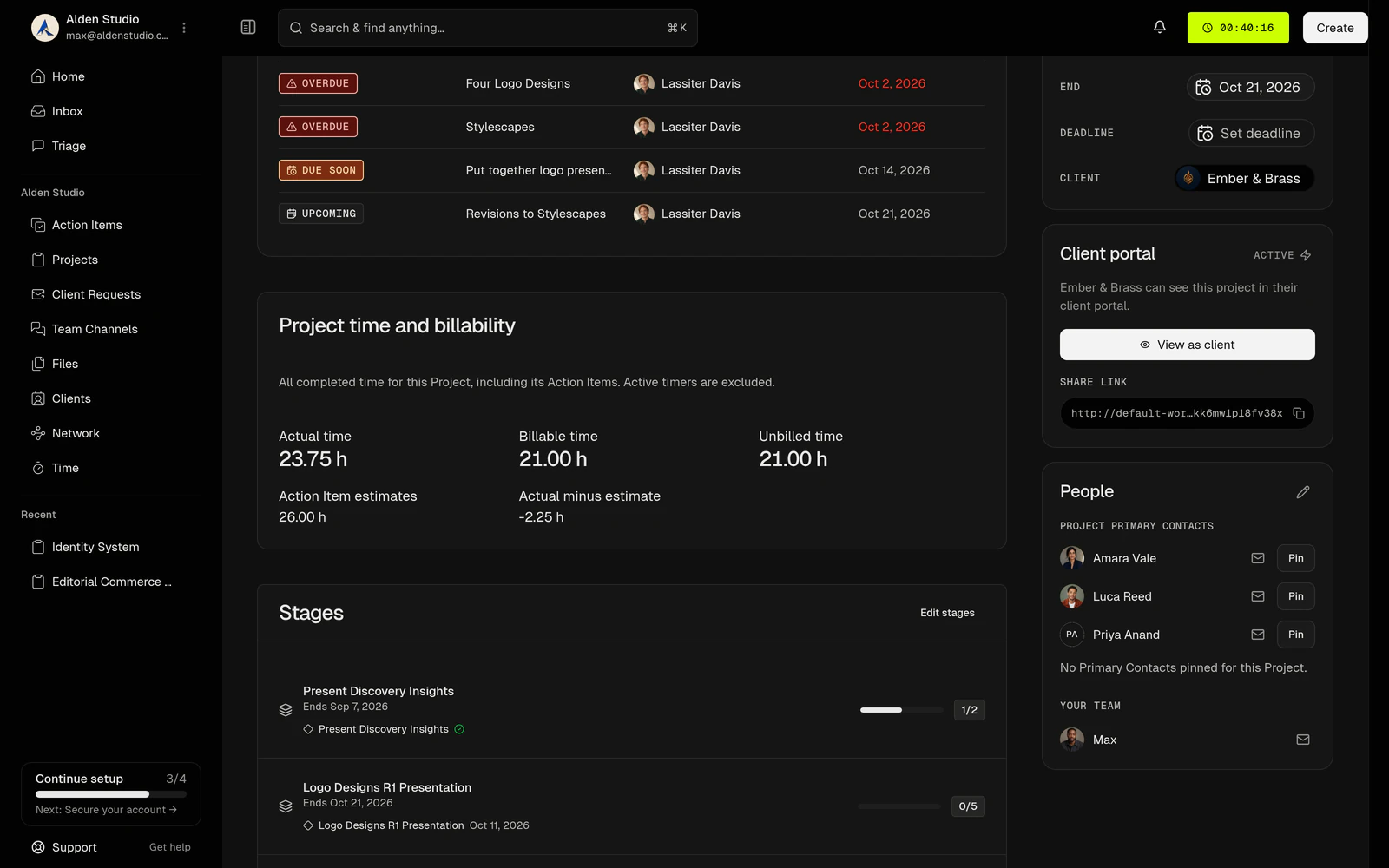
- Every project shows its hours against the estimate.
Everything in time tracking
Who it’s for
Solo designers
See which client is eating the week while there's still time to do something about it.
Studios
Everyone tracks their own time. The owner sees all of it, by client and by person.
Retainer work
Hours against every engagement, so the monthly check-in starts with numbers.
Fixed-fee projects
Actual against estimate on every project, so the next quote lands closer.
Questions & Answers
Where can I start a timer?
From the timer in the top bar, on any page, or with Track Time on an action item. Any entry on the timesheet can be restarted to keep going on the same work.
Can I run two timers at once?
No. One timer runs at a time across every workspace you belong to. Starting a new one asks whether to replace the running one. Nothing stops without you.
Can I pause a timer?
No. Stop it and start again later. Each stretch is saved as its own entry.
Can I add time after the fact?
Yes. Enter a start and a duration, or a start and an end. Type the duration as 1h 30m, 90m, or 1:30. One person's entries can't overlap.
What can I track time against?
An action item, a project, or personal work. Time on an action item counts toward its project. Personal work is always non-billable. Archived projects don't take new time.
Can I log time for someone on my team?
Owners and admins can add finished entries for a teammate. Timers are always your own.
Who can see my time?
Workspace Members see their own time. The Owner of the workspace can see it all, and so can Admins and Accountants.
Do clients see my hours?
No. Time never appears in the client portal.
What's in reports?
Pick a range: the last 7 or 30 days, this quarter, this year, or your own dates, up to a year. Group up to three levels by client, engagement, phase, project, stage, or person, and filter any of them in or out. You get total, billable, non-billable, and unbilled time, with the entries underneath.
What does unbilled mean?
Billable time that isn't on an invoice yet. Until Invoicing ships, that's all of your billable time.
Can I set hourly rates?
Not yet. Rates arrive with Invoicing and Payments. Today, time tracking records hours and whether they're billable.
Does it round to fifteen minutes?
No. Every entry keeps the exact time you tracked.
Can I export a timesheet?
Not in the beta. Export is on the roadmap.
What happens to time if I delete an action item or a project?
Time on a deleted action item moves to its project. Time on a deleted project becomes personal, non-billable time. Nothing you tracked disappears.
Can I use it today?
Time tracking is in a pilot with a first group of studios, and it's next to open up. Join the waitlist and you'll hear when it does.
Time lands on the projects and action items you already plan in Watson.